Export Cluster Definition
You can export cluster definitions from a cluster in Palette and use the definition to provision or update a cluster in an Edge host. A cluster definition contains one or more cluster profiles, including the profile variables used in the profiles.
If you create a new cluster or update an existing one with a cluster definition and content bundle built on a Palette instance, your Palette agent will be updated to match the version of that Palette instance. This may result in an upgrade if the instance is newer than your Palette agent, or a downgrade if it is older.
You can export the cluster definition using the Palette CLI, Palette Edge CLI, or Palette API. The CLI offers a more user-friendly interface but requires a machine with X86_64 architecture. If you are using an ARM64 machine, such as Apple Silicon, use the API approach instead.
Export Cluster Definition Using the CLI
You can export cluster definitions using either the Palette and Palette Edge CLI. This approach also allows you to create a content bundle at the same time with a single command.
Limitations
-
If your cluster uses the legacy Harbor Edge-Native Config pack, you cannot use the Palette CLI to build content bundles or export cluster definitions. You must use the Palette Edge CLI.
Refer to Migrate From Harbor Edge-Native Config Pack to learn how to migrate off the legacy pack to Registry Connect pack.
Prerequisites
-
At least one cluster profile in Palette.
-
A Palette API key. For more information on how to create a Palette API key, refer to Create API Key.
-
A physical or virtual Linux machine with AMD64 (also known as x86_64) processor architecture. You can issue the following command in the terminal to check your processor architecture.
uname -m
Enablement
- Palette CLI
- Palette Edge CLI
-
Download the Palette CLI. Refer to the Palette CLI Compatibility Matrix to find a compatible CLI version and replace
<palette-cli-version>with the selected version.VERSION=<palette-cli-version>
wget https://software.spectrocloud.com/palette-cli/v$VERSION/linux/cli/palette
chmod +x palette -
Use the following command to move the
palettebinary to the /usr/local/bin directory to make the binary available in your system $PATH. This will allow you to issue thepalettecommand from any directory in your development environment.mv palette /usr/local/bin -
Verify that the Palette CLI is part of your system path by issuing the Palette CLI
versioncommand.palette versionPalette CLI version: [version number] -
Authenticate with Palette using the
logincommand. Replace<your-api-key>with your Palette API key.palette login --api-key <your-api-key> --console-url https://console.spectrocloud.com/ -
Log in to the Palette console.
-
Select the project you want to deploy the Edge host to.
-
On the Project Overview page, copy the Project ID, located in the top-right below the User Menu.
tipYou can also retrieve your project ID from the URL:
https://console.spectrocloud.com/projects/<project-id>. -
Navigate to the left main menu and select Profiles.
-
Use the Cloud Types drop-down menu and select Edge Native.
-
Select the cluster profile you want to include in the cluster definition and copy the Profile ID. Repeat this step for all cluster profiles whose images you want to include in the cluster definition.
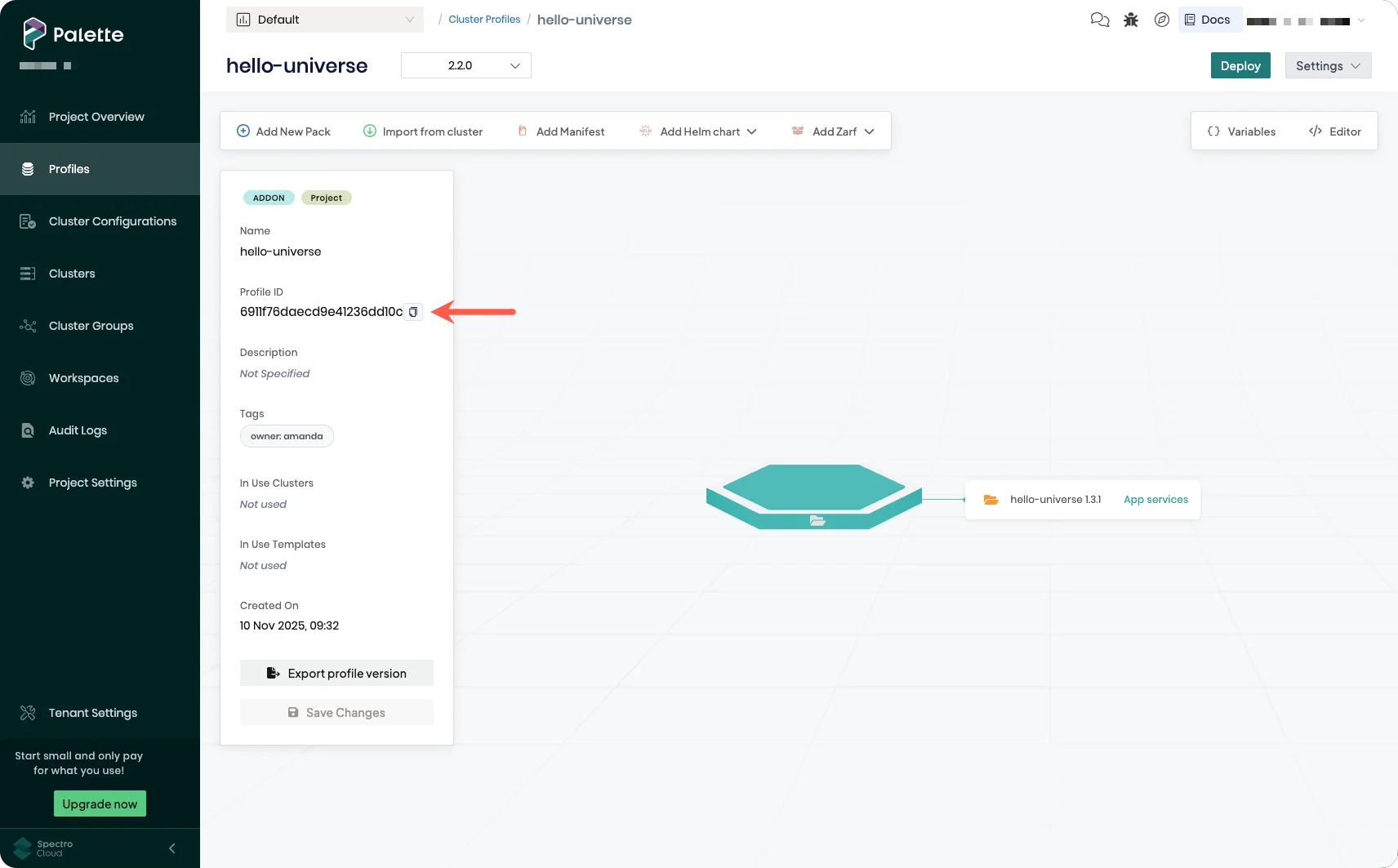 tip
tipYou can also retrieve the cluster profile ID from the URL:
https://console.spectrocloud.com/projects/<project-id>/profiles/cluster/<profile-id>.Make sure the combination of profiles you choose to export can be used to provision a cluster together. This means that you cannot include more than one profile that has infrastructure layers and cannot have duplicate packs between the profiles.
-
Issue the following command to export the cluster definition, replacing the placeholder values with your actual values. The
buildcommand will generate the.tgzcluster definition file in the<current-directory>/output/folder by default. Refer to the content build CLI command page for a complete list of available flags.palette content build --arch <bundle-architecture> \
--project-id <project-id> \
--cluster-definition-name <definition-name> \
--cluster-definition-profile-ids <cluster-profile-id1,cluster-profile-id2...> -
(Optional) You can also build a content bundle along with your cluster definition in a single command by adding the
profilesandnameflags to the command. By default, the content bundle will be generated in the<current-directory>/output/content-bundle/folder. Content bundles are archives of all the container images required for one or more cluster profiles. You can upload a content bundle to your Edge host through Local UI or the Palette CLI, and use the resources in the content bundle to provision clusters without a connection to external networks. For more information, refer to Build Content Bundles.palette content build --arch <bundle-architecture> \
--project-id <project-id> \
--profiles <cluster-profile-id1,cluster-profile-id2...> \
--cluster-definition-name <cluster-definition-name> \
--cluster-definition-profile-ids <cluster-definition-profile-ids> \
--name <bundle-name>
-
Download the Palette Edge CLI. Refer to the Palette CLI Compatibility Matrix to find a compatible CLI version and replace
<palette-edge-cli-version>with the selected version.VERSION=<palette-edge-cli-version>
wget https://software.spectrocloud.com/stylus/v$VERSION/cli/linux/palette-edge
chmod +x palette-edge -
Use the following command to move the palette-edge binary to the /usr/local/bin directory to make the binary available in your system $PATH. This will allow you to issue the
palette-edgecommand from any directory in your development environment.mv palette-edge /usr/local/bin -
Verify the installation of the Palette Edge CLI by issuing the following command. The output will display a list of available commands and flags for the CLI.
palette-edge --helpUsage:
palette-edge [command]
Available Commands:
build Build the content
build-from-local
deploy
help Help about any command
show Display all the preset default values and supported OS and K8S flavors
upload
Flags:
--config string config file (default is $HOME/.palette-edge-cli.yaml)
--debug set to enable debug logging [default: false]
-h, --help help for palette-edge
--logfile string log file name
--trace set to enable trace logging [default: false]
Use "palette-edge [command] --help" for more information about a command. -
Log in to Palette.
-
Select the project you want to deploy the Edge host to.
-
On the Project Overview page, copy the Project ID, located in the top-right below the User Menu.
tipYou can also retrieve your project ID from the URL:
https://console.spectrocloud.com/projects/<project-id>. -
Navigate to the left main menu and select Profiles.
-
Use the Cloud Types drop-down menu and select Edge Native.
-
Click on the cluster profile you want to include in the cluster definition.
-
Select the cluster profile you want to include in the cluster definition and copy the Profile ID. Repeat this step for all cluster profiles whose images you want to include in the cluster definition.
tipYou can also retrieve the cluster profile ID from the URL:
https://console.spectrocloud.com/projects/<project-id>/profiles/cluster/<profile-id>.Make sure the selected profiles can be used together to provision a cluster. Only one profile may include infrastructure layers, and no packs can be duplicated across the profiles.
-
Issue the following command to export the cluster definition.
palette-edge build --api-key <apiKey> \
--project-id <projectId> \
--palette-endpoint <paletteEndpoint> \
--cluster-definition-name <clusterDefinitionName> \
palette-edge build --api-key <api-key> \
--project-id <project-id> \
--palette-endpoint <palette-endpoint> \
--cluster-definition-name <cluster-definition-name> \
--cluster-definition-profile-ids <cluster-definition-profile-id1,cluster-definition-profile-id2,...>
Flag Description --api-keyYour Palette API key. --palette-endpointAPI endpoint for your Palette instance. --project-idThe ID of your Palette project. --cluster-definition-nameFilename of the cluster definition tgz file. --cluster-definition-profile-idsList of cluster profile IDs to be included in the cluster definition. --private-keyThe path to the private key used to sign the cluster definition and content bundle if it is present. This is necessary if your Edge host has an embedded corresponding public key. For more information, refer to Embed Public Key in Edge Artifacts. -
(Optional) You can also build a content bundle together with your cluster definition in a single command by adding a few additional flags to the command. Content bundles are archives of all the required container images required for one or more cluster profiles. You can upload a content bundle to your Edge host through Local UI, and use the resources in the content bundle to provision clusters without a connection to external networks. For more information, refer to Build Content Bundles.
 palette-edge build --api-key <API_KEY> \
 --project-id <PROJECT_ID> \
 --cluster-profile-ids <CLUSTER_PROFILE_ID1,CLUSTER_PROFILE_ID2...> \
 --palette-endpoint <PALETTE_API_ENDPOINT> \
 --outfile <BUNDLE_NAME> \
 --cred-file-path <FILE_PATH> \
 --include-core-images-only \
 --cluster-definition-name <CLUSTER_DEFINITION_FILENAME> \
palette-edge build --api-key <api-key> \
--project-id <project-id> \
--cluster-profile-ids <cluster-profile-id1,cluster-profile-id2...> \
--palette-endpoint <palette-api-endpoint> \
--outfile <bundle-name> \
--cred-file-path <file-path> \
--include-core-images-only \
--cluster-definition-name <cluster-definition-filename> \
--cluster-definition-profile-ids <cluster-profile-ids>
Flag Description --api-keyYour Palette API key. --cluster-profile-idsComma-separated list of cluster profile IDs to download content for. --cred-file-pathPath to the JSON file storing registry credentials if you are using a private registry. --include-core-images-onlyWhether to include images for the Palette agent that are necessary for cluster creation only. By default, content bundles include images to support both cluster creation and cluster management. In the case of installations of locally managed Edge hosts, we recommend using this option to reduce the size of the content bundle, as Local UI currently does not offer native backup and support features. --outfileName of your content bundle. The final file name should have the following pattern: core-<bundle-name>-random-string.--palette-endpointAPI endpoint for your Palette instance. --project-idThe ID of your Palette project. --private-keyThe path to the private key used to sign the content bundle and cluster definition if it is present. This is necessary if your Edge host has an embedded corresponding public key. For more information, refer to Embed Public Key in Edge Artifacts.
Validate
-
Log in to Local UI.
-
From the left main menu, click on Cluster.
-
Try creating a cluster with the exported cluster definition. For more information, refer to Create a Local Cluster.
-
A successful cluster definition export will display the correct profile layers from the cluster creation view.
Export Cluster Definition with Palette API
If you do not have an AMD64 machine, or you do not want to download and use the Palette Edge CLI, you can still export cluster definitions using the Palette API.
Prerequisites
-
At least one cluster profile in Palette.
-
A Palette API key. For more information on how to create a Palette API key, refer to Create API Key.
-
curl is installed on your machine. You can also use API management tools such as Postman. This document uses curl as an example.
Enablement
-
Log in to Palette.
-
Select the project you want to deploy the Edge host to.
-
On the Project Overview page, copy the Project ID, located in the top-right below the User Menu.
tipYou can also retrieve your project ID from the URL:
https://console.spectrocloud.com/projects/<project-id>. -
From the left main menu, select Profiles.
-
Select the cluster profile you want to include in the cluster definition and copy the Profile ID. Repeat this step for all cluster profiles whose images you want to include in the cluster definition.
tipYou can also retrieve the cluster profile ID from the URL:
https://console.spectrocloud.com/projects/<project-id>/profiles/cluster/<profile-id>.All profiles must be in the same project. Make sure the selected profiles can be used together to provision a cluster. Only one profile may include infrastructure layers, and no packs can be duplicated across the profiles.
-
Use the Palette Download Cluster Definition API to download the cluster definition. The endpoint location is
POST https://api.spectrocloud.com/v1/spectroclusters/spc/download. If you are using a self-hosted Palette instance, replace the base URLapi.spectrocloud.comwith API endpoint address of your Palette instance.The endpoint takes a few header arguments and a request body.
Header Parameter Description ProjectUidThe unique ID of the project where the profiles are located. Content-TypeYou must set the value of this header to application/jsonto indicate that your payload is in the JSON format.ApiKeyThe value of your Palette API key. In the request body, you must provide the ID of the cluster profiles to include in the cluster definition.
Parameter Description metadataYou must set the value of this field to {"name":"cluster-profiles"}.spec.cloudTypeYou must set the value of this field to edge-native.spec.profilesProvide the exact list of cluster profiles to include in the cluster definition. Inside the list are objects representing the cluster profiles. Each object must have the required key uid, which is the ID of the cluster profile.The following curl command is an example.
curl --location 'https://api.spectrocloud.com/v1/spectroclusters/spc/download' \
--header 'ProjectUid: 5fbbf0XXXXX' \
--header 'Content-Type: application/json' \
--header 'ApiKey: XXXXXXXX' \
--output ~/Downloads/demo/cluster-definition.tgz \
--data-raw '{
"metadata": { "name": "cluster-profiles" },
"spec":
    {
        "cloudType": "edge-native",
        "profiles":
            [
                {
                    "uid": "65c90XXXXX770dae35"
                },
                {
                    "uid": "65c91XXXXa9fe4f51c"
                }
            ]
    }
}'
Validate
-
Log in to Local UI.
-
From the left main menu, click on Cluster.
-
Try creating a cluster with the exported cluster definition. For more information, refer to Create a Local Cluster.
-
A successful cluster definition export will display the correct profile layers from the cluster creation view.
Next Steps
You can build the cluster definition into the Edge Installer ISO, or upload the cluster definition to an existing Edge deployment using Local UI during cluster creation.